
Manual and help
Frequently asked questions
How do I connect the printer?
Turn on the printer and make sure Bluetooth is on on your phone or computer. In the app, tap Print (or Connect at the top) and choose "BlueTooth Printer". In the web app you choose the printer again each time; that is a security feature of the browser.
Which devices does it work on?
The iPhone app is in the App Store. The Android app is in Google Play. On a Mac, Windows computer or Chromebook, use the web app at lanuprinter.nl/app in Google Chrome or Microsoft Edge. Safari does not support Bluetooth for websites.
The app says "The printer is not responding"
Check that the lid is closed properly on both sides and that there are labels in the printer. The printer does not respond while the lid is open or the labels have run out. Then tap Print again. Is the light flashing red? Calibrate the printer (see Calibration).
The label is too light
Choose "Darker" under Quality. The printer then prints blacker and a little slower. Under More settings you can also set the print darkness yourself.
The print is not positioned correctly or runs over two labels
Check that the label size in the app matches your label roll (for example 100 × 150 mm). Then calibrate the printer: hold the FEED button for 5 seconds until the light flashes red, then release it. The printer measures the labels again. Is the border too tight? Increase the margin in Settings.
How do I print a label that is on an A4 PDF?
Choose the file as it is. With "Crop (auto)" (on by default) the app removes the white space and makes the label fit your label.
How do I make a barcode for my product?
On the main screen, tap "Create your own label", choose Barcode and paste your EAN. With 12 digits the app calculates the check digit itself. Choose the size of your label and press Print.
Which label sizes can I use?
The 9X prints on labels from 20 to 108 mm wide. In the app, choose a standard size or enter the width and length yourself.
1. Specifications
The Lanu 9X is a thermal printer: it uses no ink, but prints with heat on thermal labels. Suitable for shipping labels, barcodes, product and price labels, stock stickers and QR codes.
| Print technology | Direct thermal |
|---|---|
| Resolution | 203 dpi |
| Print speed | up to 160 mm/s |
| Label width | 20 to 108 mm |
| Max. label size | 108 × 1778 mm |
| Bluetooth | iPhone, iPad, Android, Mac and Windows via the Lanu Printer app |
| USB | Windows and Mac (with driver) |
| Dimensions and weight | 180 × 215 × 120 mm, 1.2 kg |
In the box: Lanu 9X, 1 roll with 350 shipping labels (102 × 150 mm), USB cable, power adapter with cable and the manual.
2. Parts of the printer
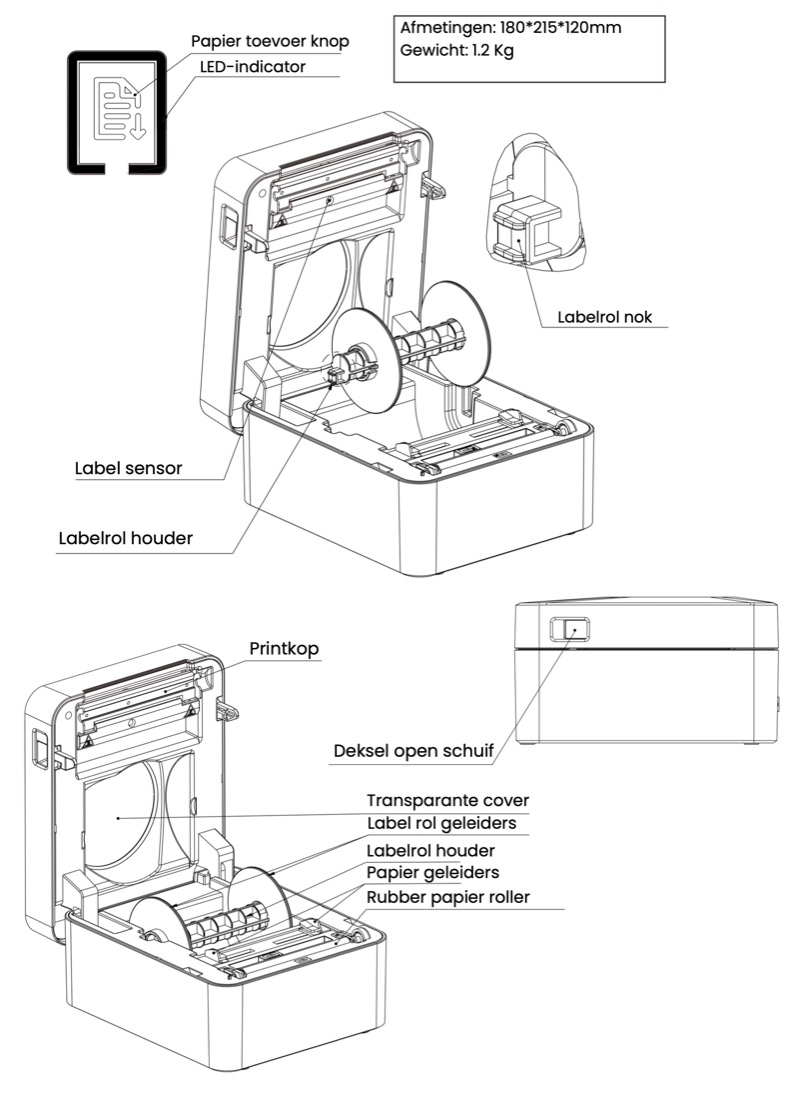
3. Loading the label roll
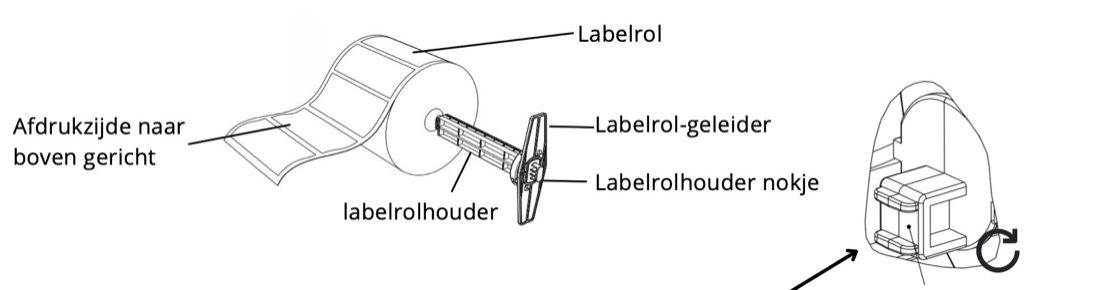
- Open the lid: pull in the orange sliders on both sides and lift the lid. Make sure the label roll is wound tightly.
- Slide the roll holder through the core of the roll. The notch on the side goes either at the bottom or at the top: try both ways, it depends on the roll. Does the roll touch the lid? Notch at the bottom. Does the roll touch the base? Notch at the top.
- Place the roll in the printer and check that it can turn freely: it must not touch the base or the closed lid. Do not pull on the labels when the lid is closed.
- Only use the roll guides for labels narrower than 100 mm, so the roll stays in the middle. With the included roll (100 × 150 mm) this is not needed.
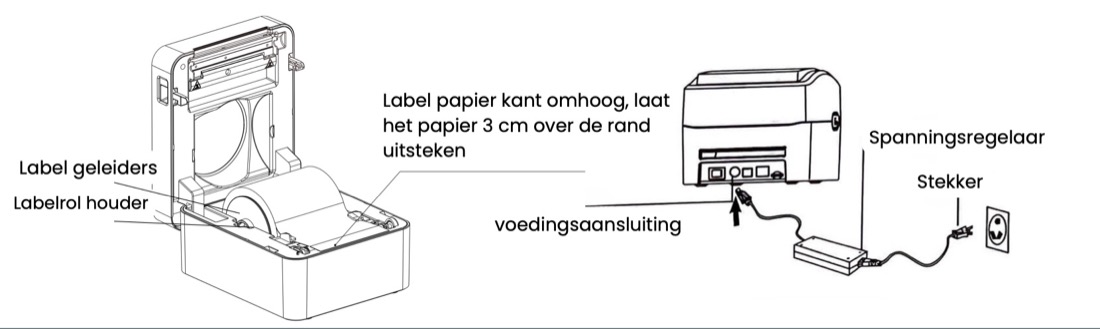
- Feed the labels with the print side facing up through the orange paper guides, pull about 3 cm out of the printer and close the lid until it clicks.
- Connect the power cable to the printer and the socket while the switch is off. Then turn the switch on.
- Press the FEED button to check that the labels feed through properly.
- Calibrate the printer (see chapter 4). Always do this after changing a roll or label size.
4. Calibration and the light
When to calibrate? With a new label roll or a different label size, when the print shifts, or when the printer feeds several blank labels.
- Load the label roll properly and turn on the printer.
- Hold the FEED button for 5 seconds until the light flashes red.
- Release it. The printer now measures the label size itself.
Does the print still shift? Check the label size and gap in the app (see chapter 8).
| Light | Meaning | What to do |
|---|---|---|
| Off | No power | Turn the switch on. Check that the light on the adapter is on and that the cables are connected properly. |
| Blue | Ready to use | Nothing, you can print. |
| Flashing blue | Paused | Press the FEED button to continue. |
| Flashing red | Error | Check that there are labels inside, otherwise load a new roll and press FEED. Then calibrate. |
5. Opening the app and connecting
- Mac, Windows computer or Chromebook with Bluetooth: open lanuprinter.nl/app in Google Chrome or Microsoft Edge. Tip: click "Install" in the address bar to add the app to your computer as a separate program.
- Android: download the free Lanu Printer app from Google Play. Or open lanuprinter.nl/app in Chrome.
- iPhone and iPad: download the free Lanu Printer app from the App Store. Safari does not support Bluetooth for websites.
- Turn on the printer (blue light) and turn on Bluetooth on your phone or computer.
- Connect only through the app, not through the Bluetooth settings of your phone or computer.
- In the app, tap Connect at the top (or the light Print button) and choose BlueTooth Printer. In the app it is then called "Lanu 9X". Does your device ask for a PIN? Enter
1234.
6. Printing a label
- Tap Choose files and choose a PDF or image, for example your shipping label from bol, PostNL, DHL or Vinted. On a computer you can also drag files into the window.
- Several labels? Choose several files at once, or add more later with Add. With Edit you see your files and can remove one.
- With a PDF of several pages, swipe through the pages and tick the ones you want to print.
- Check the size. For the included roll that is 100 × 150 mm.
- Choose how many times to print each label and tap Print.
7. Making and saving your own label
- On the main screen, tap Create your own label.
- Add text, a barcode, a line or a box. For a barcode, type or paste the EAN code; with 12 digits the app calculates the check digit itself.
- Drag parts to the right place, or use Center to center them.
- Choose the size of your label and tap Print.
Tap Save on a label to keep it under Saved labels and print it again later with one tap. Saved labels are only stored on your own device.
8. Settings
- Language: the app follows the language of your phone or computer. Under Settings you can choose Nederlands or English yourself.
- Quality: Normal is best for most labels. Choose Darker if labels are too light or not sharp (lower speed, higher print darkness), or Fast for the highest speed.
- Margin: the white border around the label. Increase it if the edge of your label gets cut off.
- Gap: the space between two labels on the roll (usually 2 mm).
9. Printing via USB (Windows and Mac)
Prefer a cable, or does your computer have no Bluetooth? Then print through the normal print menu.
- Download the driver: Windows or Mac.
- Connect the printer to power, turn it on and connect it with the USB cable.
- Windows: open the installation file. Does Windows say "Windows protected your PC"? Click More info and then Run anyway. Follow the steps and choose the printer's USB port.
- Mac: open the driver file. Does your Mac say it can't be opened? Go to System Settings > Privacy & Security, scroll down and click Open Anyway. Then add the printer via System Settings > Printers & Scanners > Add Printer and choose the Labelprinter 9X.
- Print a test label: open the test label in Google Chrome, choose Print (Ctrl + P or Cmd + P), select the Labelprinter 9X, paper size 100 × 150 mm (4 × 6 inch) and scale Fit to printable area.
10. Maintenance and cleaning
You need: a cotton swab or print head cleaning pen, a lint-free cloth, 100% ethanol (not rubbing alcohol, which damages the print head) and optionally compressed air.
| Part | When | How |
|---|---|---|
| Print head | With every roll change | Turn off the printer, let the head cool down for 1 minute and clean it carefully with a cotton swab and 100% ethanol. |
| Roller | With every roll change | Turn the roller by hand and wipe it clean with a lint-free cloth with ethanol. Then calibrate. |
| Sensor and tear edge | When needed | Wipe away dust and glue residue with a lint-free cloth with ethanol. |
| Housing | When needed | Compressed air, vacuum cleaner or a dry cloth. |
Never touch the print head with your fingers. If it happens anyway, clean it right away with ethanol. Always turn off the printer before cleaning.
11. Troubleshooting
- "The printer is not responding" in the app: check that the lid is closed properly on both sides and that there are labels inside. Then tap Print again.
- Printer not in the list: check that the printer is on (blue light) and Bluetooth is on. Is it still connected to another device? Disconnect that first.
- Label prints crooked, shifts or prints several at once: calibrate (FEED button 5 seconds) and check the size in the app.
- Label is too small or has a lot of white space: keep Crop (auto) on, or choose 100 × 150 mm (4 × 6 inch) instead of A4 directly in your shipping software. With PostNL you need a business account for that.
- Faint or light print: usually a dirty print head or too high a speed. Clean the print head and choose Darker under Quality.
- Printer prints only part of the label: gently push the print head straight back into place and calibrate again.
- Red light or printer stops: check that the roll is seated properly and press the lid closed on both sides until it clicks. Does the roll get stuck against the base or the lid? Turn the roll holder so the notch is on the other side. Calibrate if the light stays red.
- Printer stops halfway or keeps pausing: check that the roll can turn freely, close the lid properly, calibrate or turn the printer off and on again.
- Nothing comes out via USB: print the test label first. If that doesn't work, use another USB port or reinstall the driver.
More questions are under Frequently asked questions. Still stuck? In the app, tap Report a problem under Settings, email [email protected] or send a WhatsApp to +31 85 130 2210.
12. Safety
- Power: only use the included adapter and cable, or parts with exactly the same specifications.
- Placement: put the printer on a flat, stable and dry surface. Keep the ventilation openings clear and do not cover it during use.
- Heat: do not touch the print head right after printing; it can be hot.
- Labels: only use labels suitable for direct thermal printing.
- Repairs: do not open the housing. Leave repairs to a professional.
- Cables: do not kink cables or run them along sharp edges. Never pull the plug out of the socket by the cord.
- Use: turn off the printer if you will not use it for a long time.
- Children: the printer and accessories contain small parts. Keep them out of reach of children.
- Storage: store the printer in a dry, dust-free place, preferably in the original box.
- Environment: the printer has a CE marking. Do not throw it away with household waste, but take it to a collection point for electronics. The box and the cardboard cores of the rolls can go with waste paper.